


When Data Validation or UserForms just won’t cut it in Excel.
Filtering Lists Options in Excel
If you use Data Validation in Excel, you’ll know it improves the data quality in your spreadsheet as well speeds up data entry. Lists, in particular, make it easy to consistently select values.
But have you ever had a list with hundreds of items?
What about not finding a list item because there’s so many or you can’t remember the spelling?
Then Data Validation Lists don’t work so well.
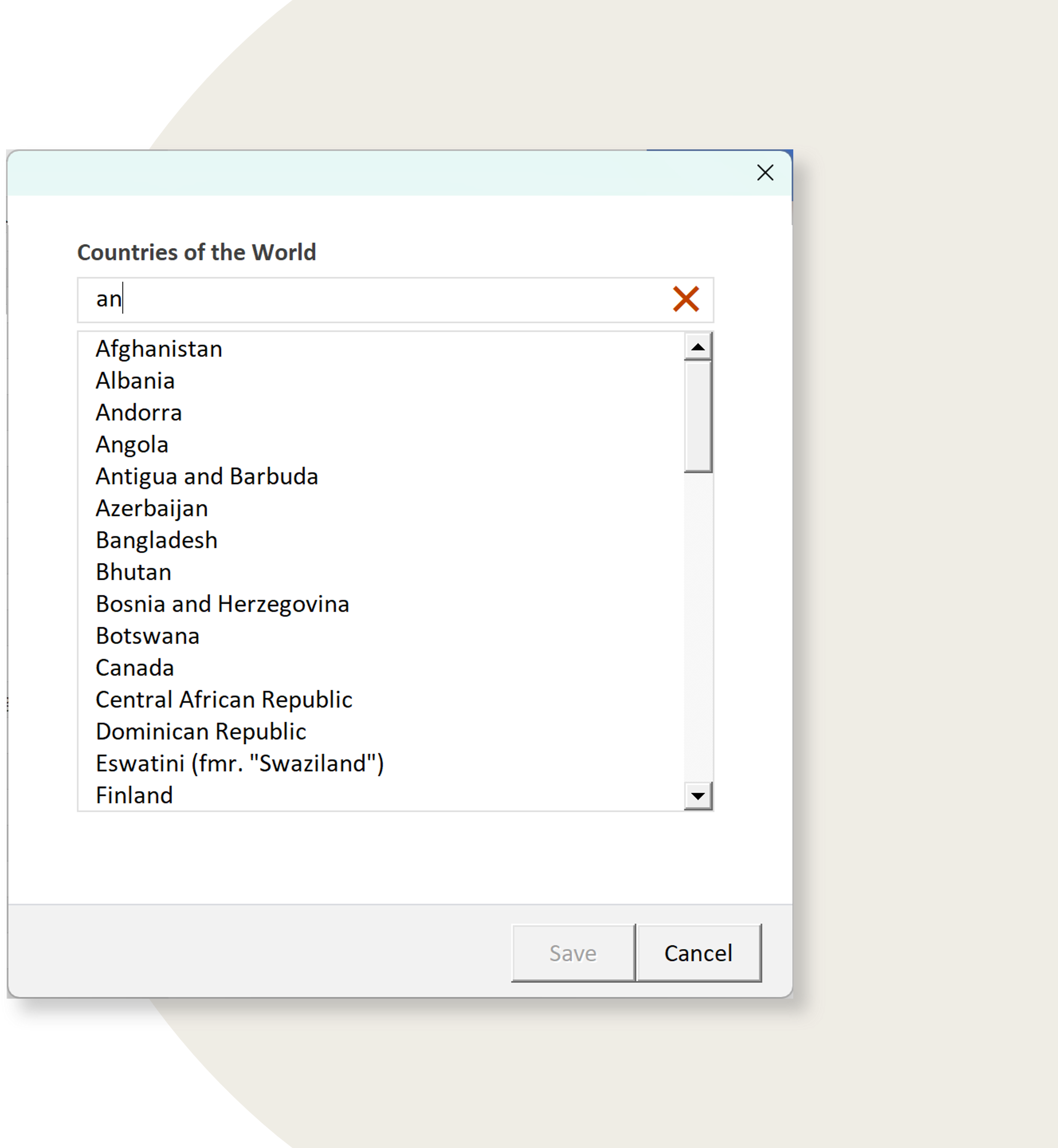
My fallback approach in scenarios like these is to use a pop-up UserForm. Something like this (check out the carousel).
Here we have a list with a textbox. The list can have hundreds, even thousands, of items. And the textbox provides the ability to dynamically filter the list with each keystroke. Try that with Data Validation.
Now, I love Excel UserForms (yes, weird, I know) and have been using them for decades. However, Excel’s more modern worksheet functions are beginning to render them redundant.
You can achieve great user interface functionality right on the worksheet.
For example, I have client I’m creating a prototype for. They have a series of templates for which they want to select one of their clients from a list, select one or more documents and have them populated with client details automatically (I’ve substituted their clients with the 100 largest companies in the world).
In the past, I would have created a UserForm with a listbox for the clients a multi-select listbox for the documents.
No more.
Pop-Up Lists
This type of list is a pop-up Excel UserForm.
It displays a textbox and a list.
The list can hold thousands of items. But with so many items, it can be difficult to find the item you want.
The textbox allows you to dynamically filter the list. As you type in the textbox a snippet of VBA code in the background automatically filters the list showing only items which contain the text you typed.
List Filter version 1.0
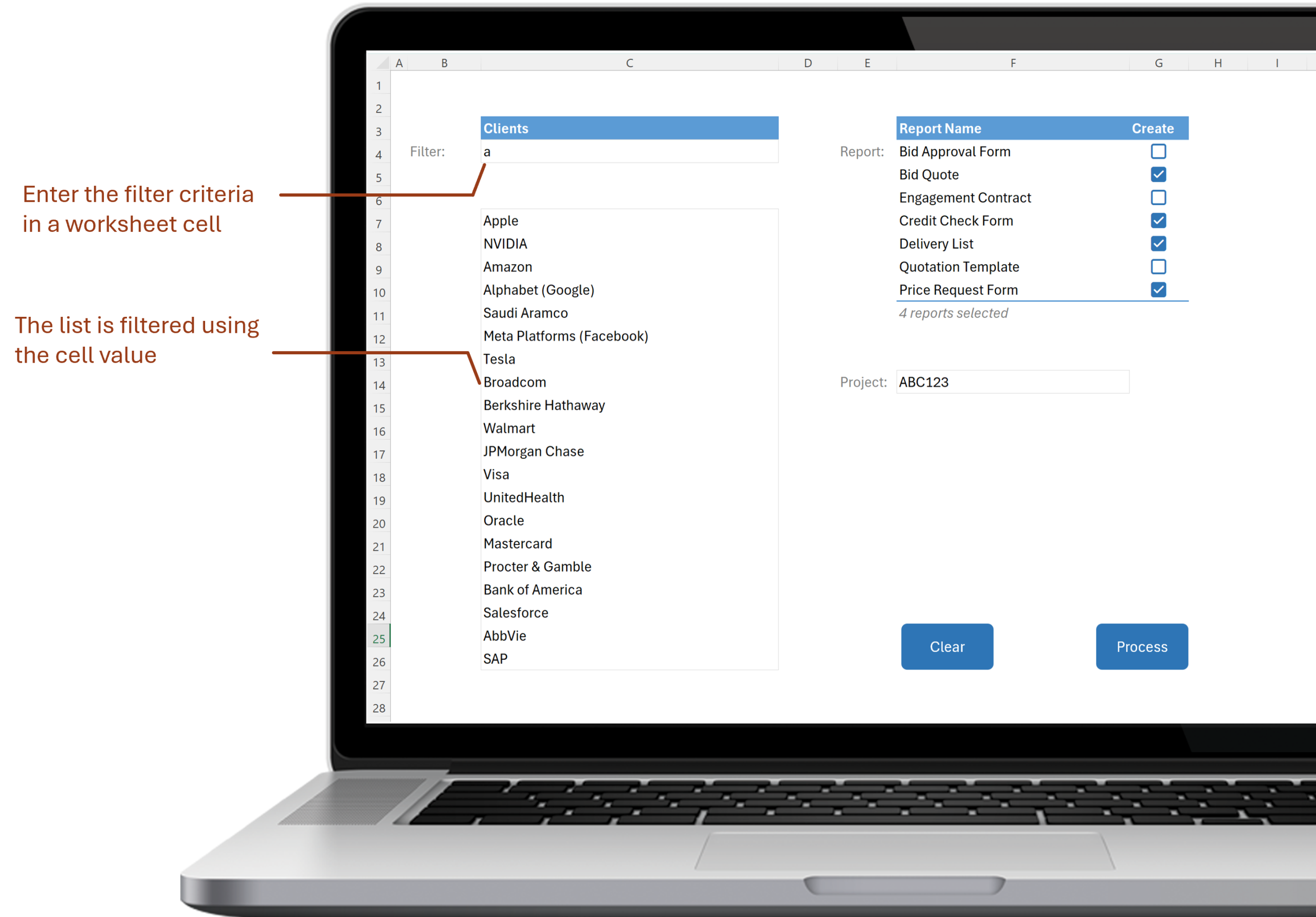
These options can be implemented on a worksheet using, amongst others, the FILTER function.
In the first prototype version, you can enter a few characters of a client name in a cell.
When you press ENTER, the client list is filtered.
But that’s a problem, the list is only filtered after you press ENTER.
It would be much better if the filtering was dynamic – updating immediately after press a character.
List Filter version 2.0
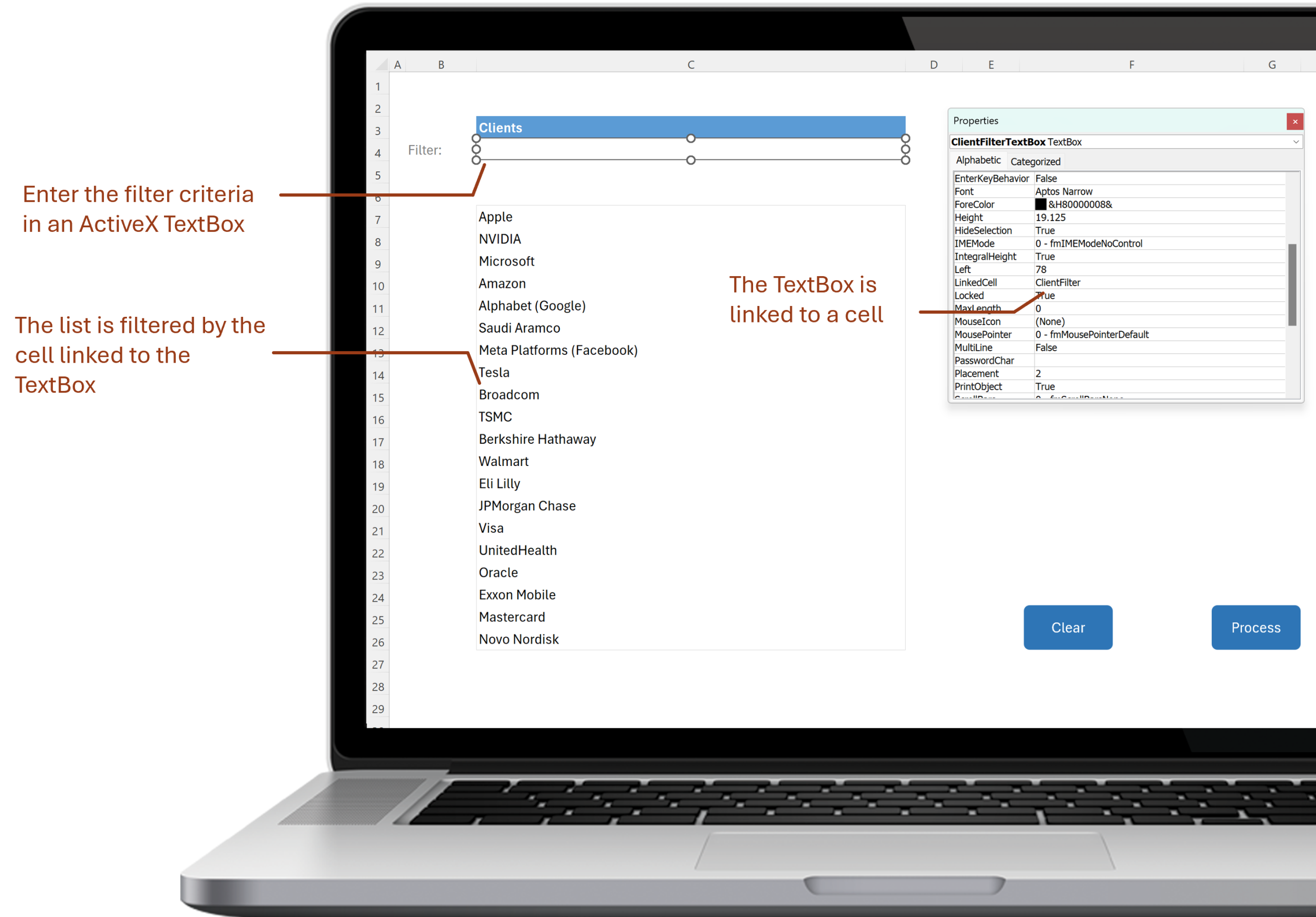
In the second prototype version, you can enter a few characters of a client name in an ActiveX TextBox which is placed on the worksheet.
This is then linked to a named cell.
As you type each character in the TextBox, the linked cell is immediately updated.
This gives you dynamic filtering – the list updates immediately after pressing each character.
Dynamic Checkboxes
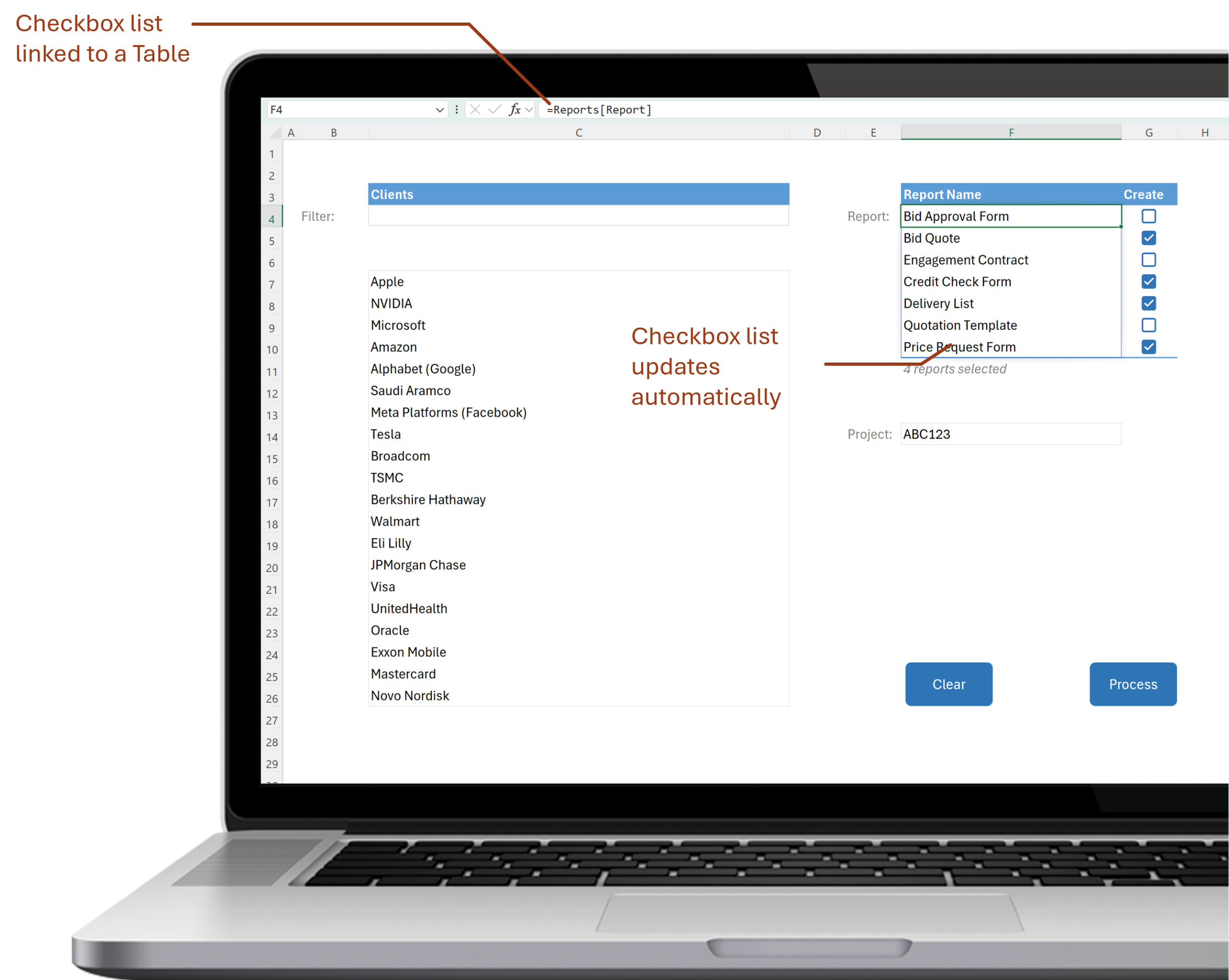
The list of available reports is also dynamic
In a UserForm, I’d resort to a multi-select listbox.
Here, the list of checkbox options is a formula linked to an underlying table of options.
As the table is updated, the list presented to users also updates.
In the background, a VBA macro processes each selected document in the list.
Over to You
Over to you - what user interface techniques have you been apply in Excel which you previously performed with UserForms? Let me know in the comments below.
0 comments