

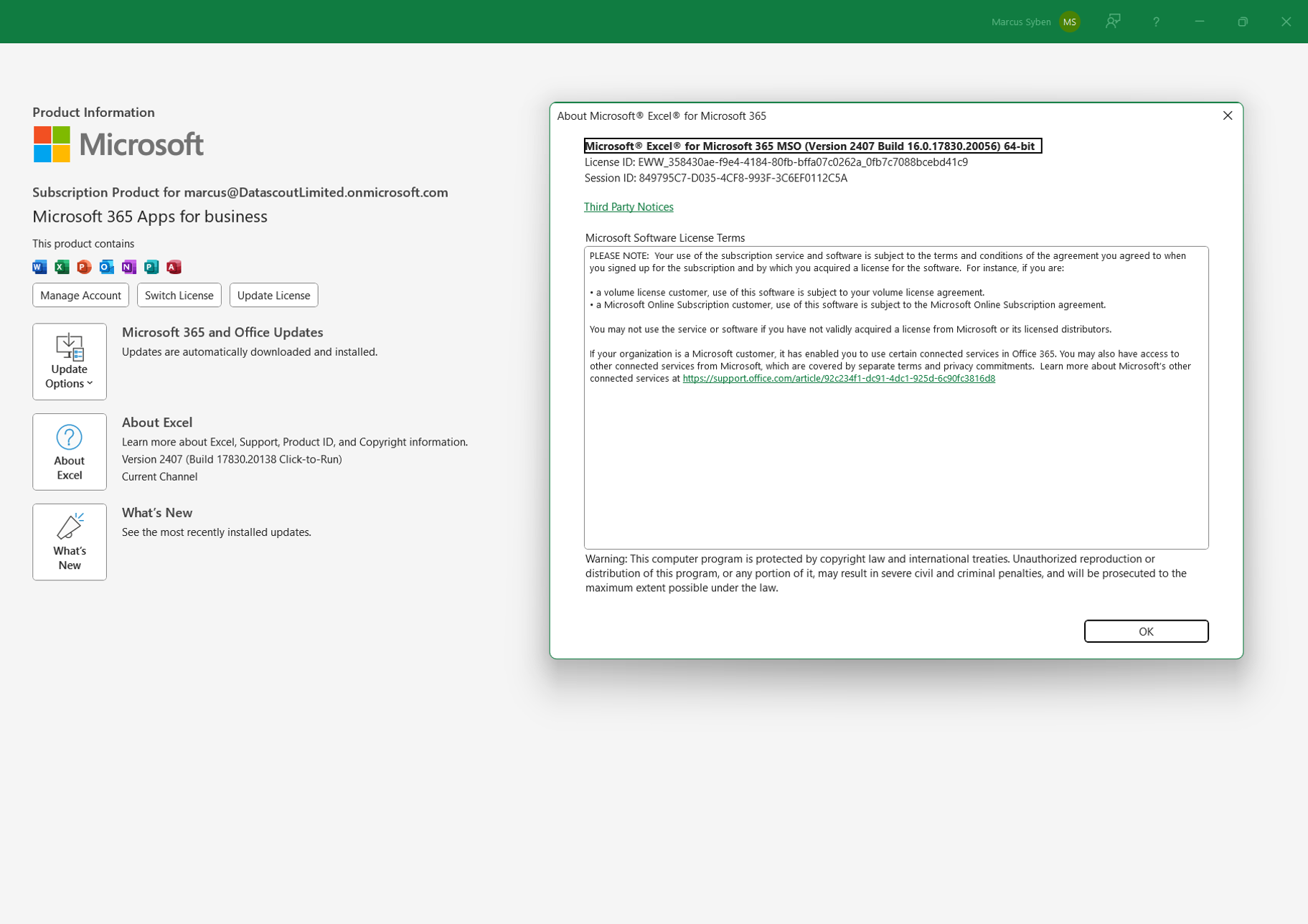
Knowing the precise version of Excel can save you hours (or days) of frustration.
Why Version Matters
Growing up in the South-Eastern suburbs of Melbourne, getting your driver’s licence was a rite-of-passage for most 18-year-olds. In suburban Melbourne, no car meant no social life.
After one of my close friends got her licence and brought a second-hand car, I asked her, “what kind of car did you buy?”.
She replied, “umm, yellow”
She wasn’t wrong. I later discovered it was an early 1980s, Datsun Stanza.
Canary yellow.
Like my friend, I suspect most people use Excel without knowing (or caring) what version of Excel they’re using.
And for the average Excel user, it doesn’t really matter.
She replied, “umm, yellow”
She wasn’t wrong. I later discovered it was an early 1980s, Datsun Stanza.
Canary yellow.
Like my friend, I suspect most people use Excel without knowing (or caring) what version of Excel they’re using.
And for the average Excel user, it doesn’t really matter.
But if you develop solutions for Excel, support Excel or your business lives-and-dies by Excel, knowing the version – the exact version – can make all the difference between hours or days of frustration and solving that obscure Excel problem that’s been plaguing you or your business.
Here’s an example.
I worked for a large asset manager than was migrating from Excel 2016 to Office 365. Some of the spreadsheets they depended on – many of which were over 20 years old – regularly crashed in Excel 365.
It was stable one day and then a pile of rubble the next.
The trigger? The version of Excel changed overnight and a weakness in the spreadsheet – say, far too many complex conditional formatting rules (like over 900 of them) – crashed the spreadsheet.
How did I know the version of Excel changed. Audit Logs and Error Logs. In these we recorded details about the environment including the exact build number which could then be used to research what changes had been implemented in that release, one of which cause the crash.
Excel offers a variety of techniques to get the version number for you. Here's some options you have . . .
The Formula Method
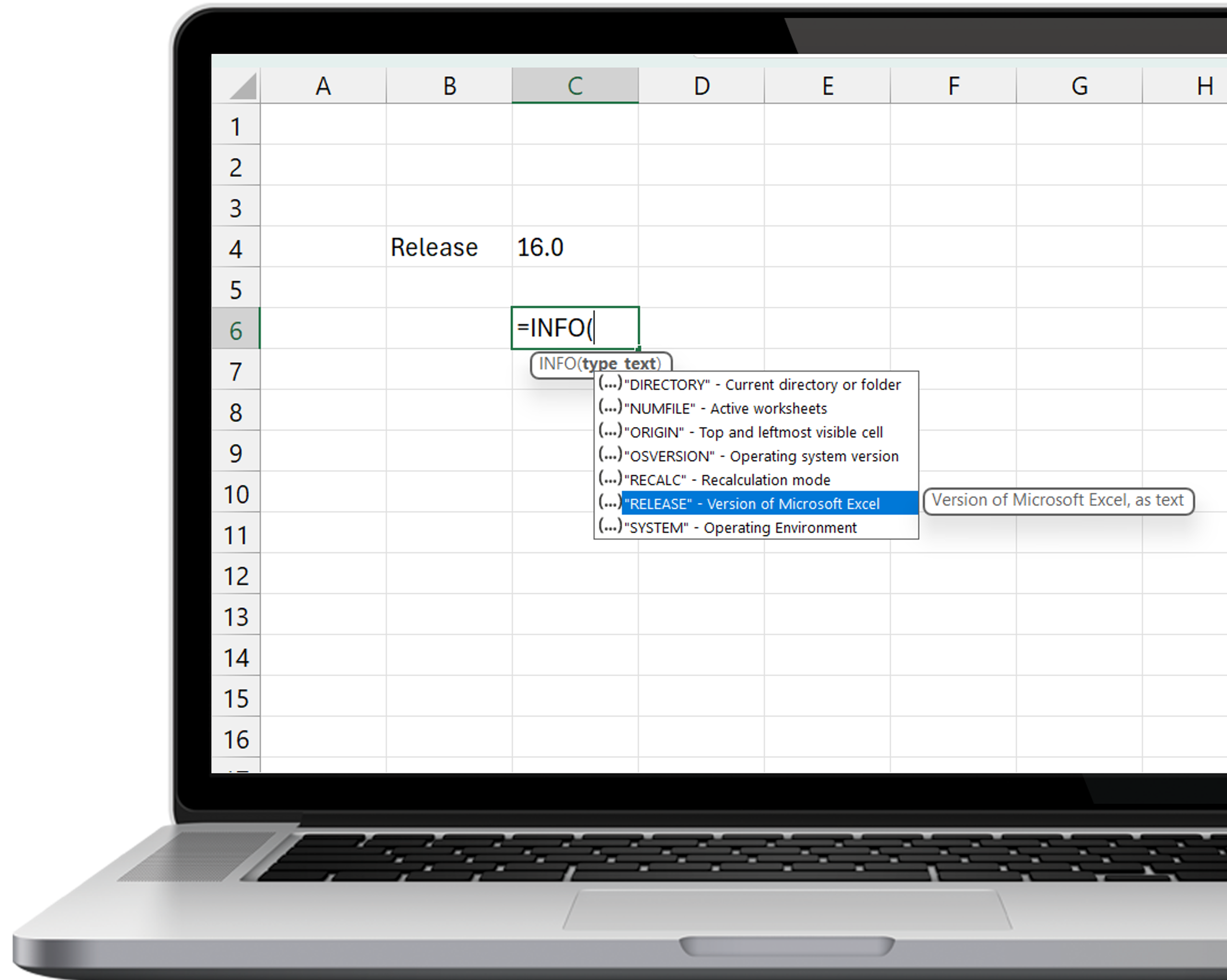
Excel’s INFO function can return several values including the operating system version such as “Windows (64-bit) NT 10.00”.
While the “RELEASE” parameter does return the current Excel version, it’s only the release number and not the entire version or build number.
The VBA Version Method
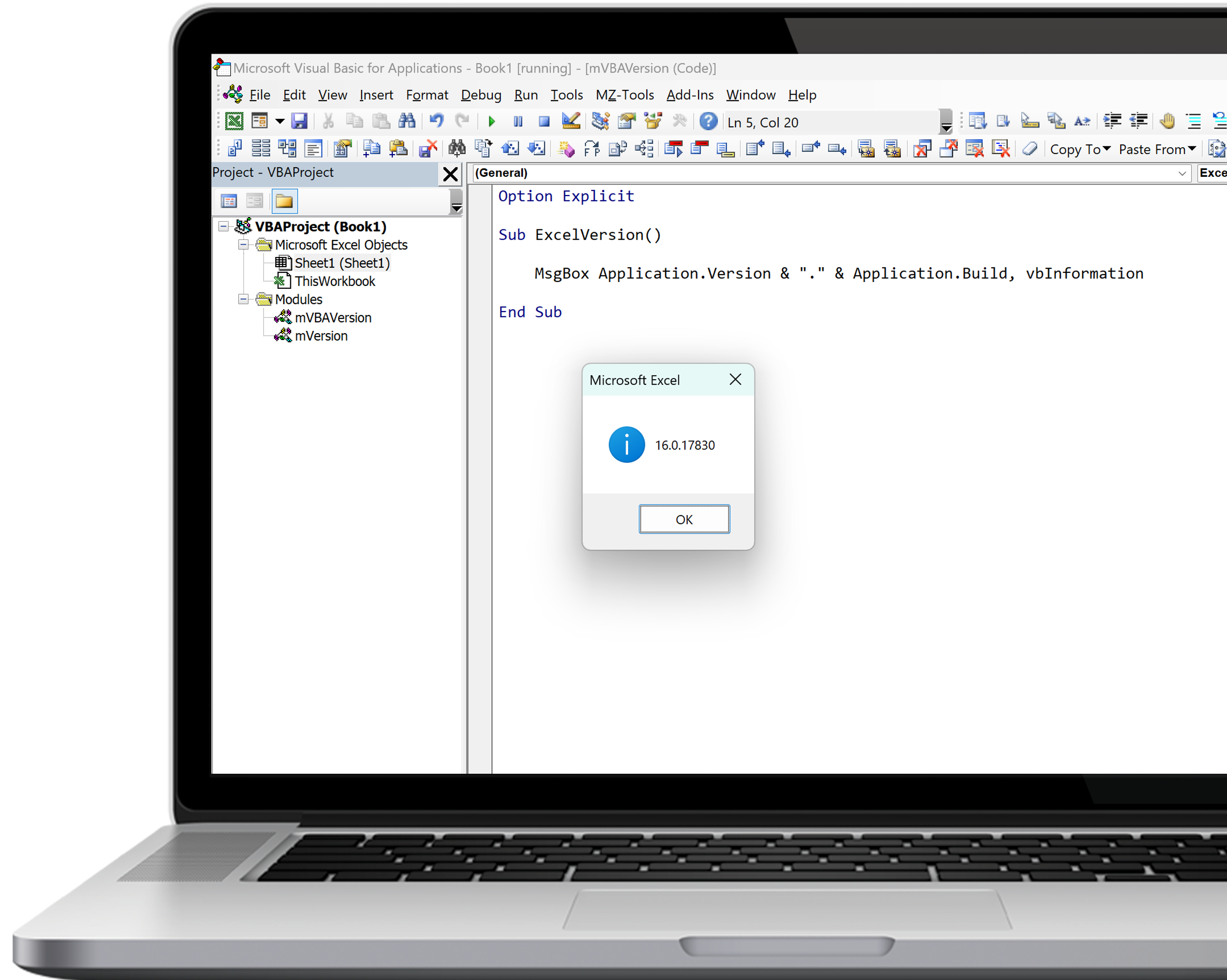
VBA has two properties of the Excel Application object which dive a little deeper.
The “Version” property returns the same value as the INFO function.
The “Build” property returns the Excel release build.
Combine them together and you have more granularity, but still not the complete build number.
For example, this combination tells me I have version “16.0.17830”.
Let’s see if we can do any better.
The File Properties Method
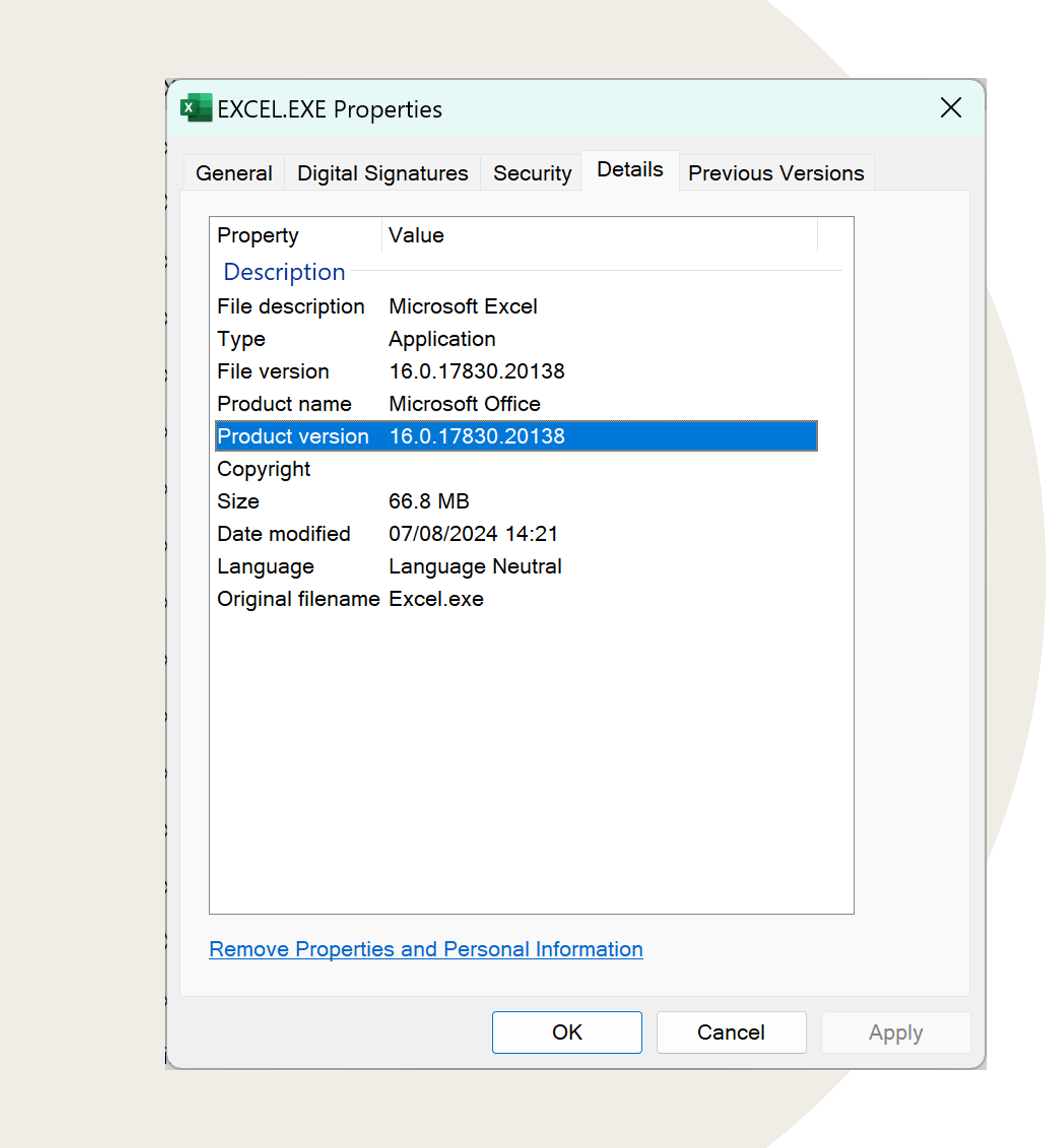
If you slip out of Excel and into Windows Explorer, you’ll get the level of detail we want.
Once you find the Excel executable, right-click it and select “Properties” from the short-cut menu.
Here you can see the complete build number under the label “Product version”. That’s what we want but from within Excel itself.
The Complete Version Number
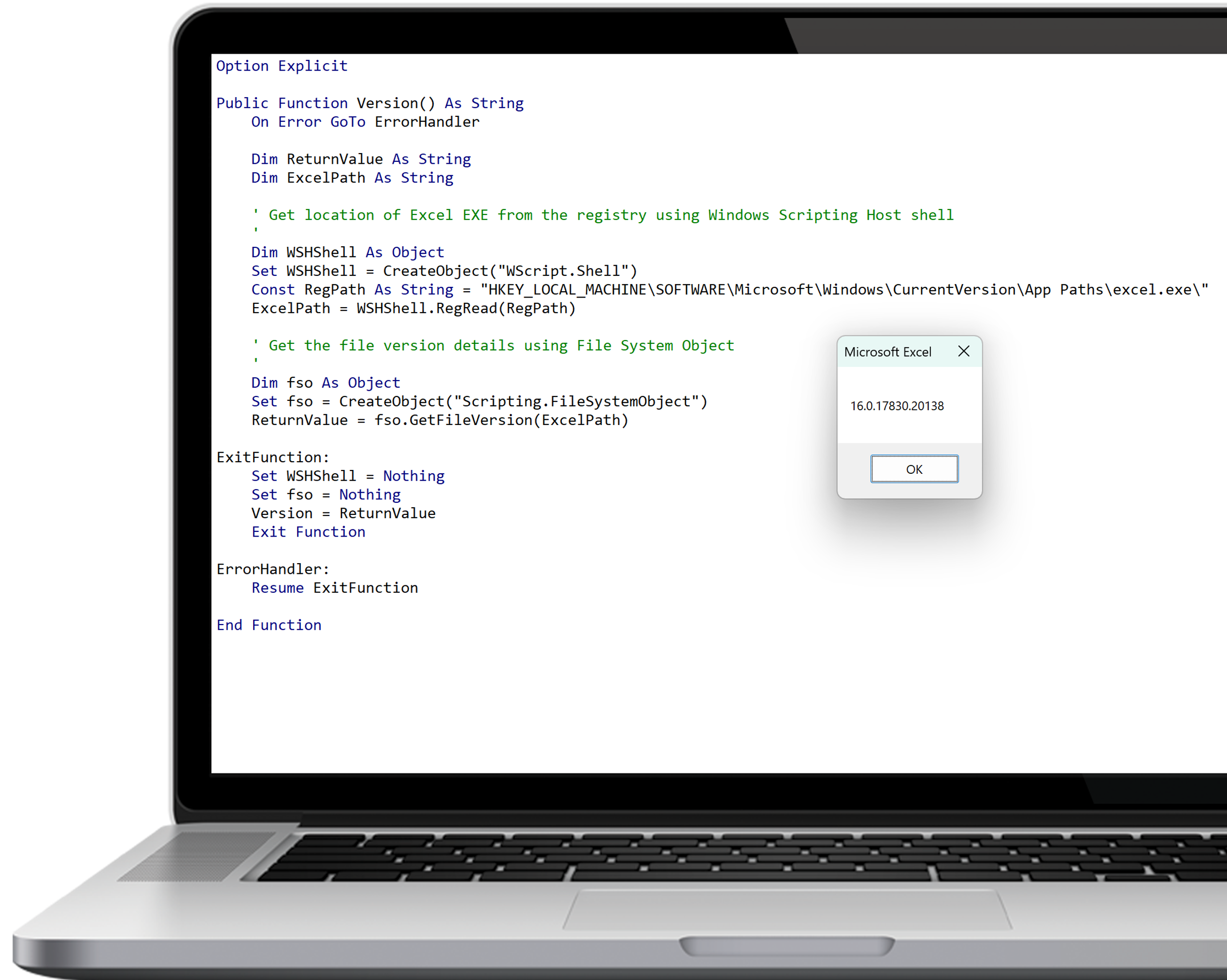
Here’s the VBA code to do it (check out the carousel).
We’re using the Scripting “FileSystemObject” which has a method called GetFileVersion.
But before calling that, we need to know where the Excel executable is. That is, where is the actual Excel "application" installed on our computer?
To discover this, we use the Windows Scripting Shell to lookup the Excel executable location from the Windows Registry - a central "database" which stores many of the settings on your Windows computer.
Combine them together for a single VBA function which tells you the exact build number of the installed Excel.
This tells me I’m running version “16.0.17830.20138”.
How You Can Use this Information
Add this code to your audit logs and error logs (you do have those, don’t you) in your Excel solutions. Also collect a few other environment details like the operation system version, host name, available memory and so on.
You’ll now have sufficient ammunition to investigate even the most cryptic Excel issues.
0 comments